Billing & pay applications
Process subcontractor pay requisitions and bill the owner with standard industry forms.
Subcontractor pay applications
Process a sub’s monthly requisition with an Application-for-Payment cover and Schedule of Values.
- Open the commitment’s pay appsOn the Commitments list, use the row actions → Sub pay applications. The drawer shows every requisition against this sub.
- Click New pay applicationPick the period. FieldsDesk pre-seeds every commitment line as a row in the schedule of values, so you do not retype anything.
- Fill the Schedule of ValuesFor each line, enter work completed this period and any materials stored. Retainage held, prior certificates, and current payment due calculate automatically.
- Print the Application for PaymentThe cover sheet renders with the sub’s name, certified amount, retainage, and signature blocks. Save as PDF to send for signature.
- Approve and payWhen the signed cover comes back, click Approve, then mark Paid when funds clear — which updates the live pay-requisition trail on the subcontract agreement.
Prime (owner) pay applications
Roll every executed commitment and approved CO into your standard pay application to the owner.
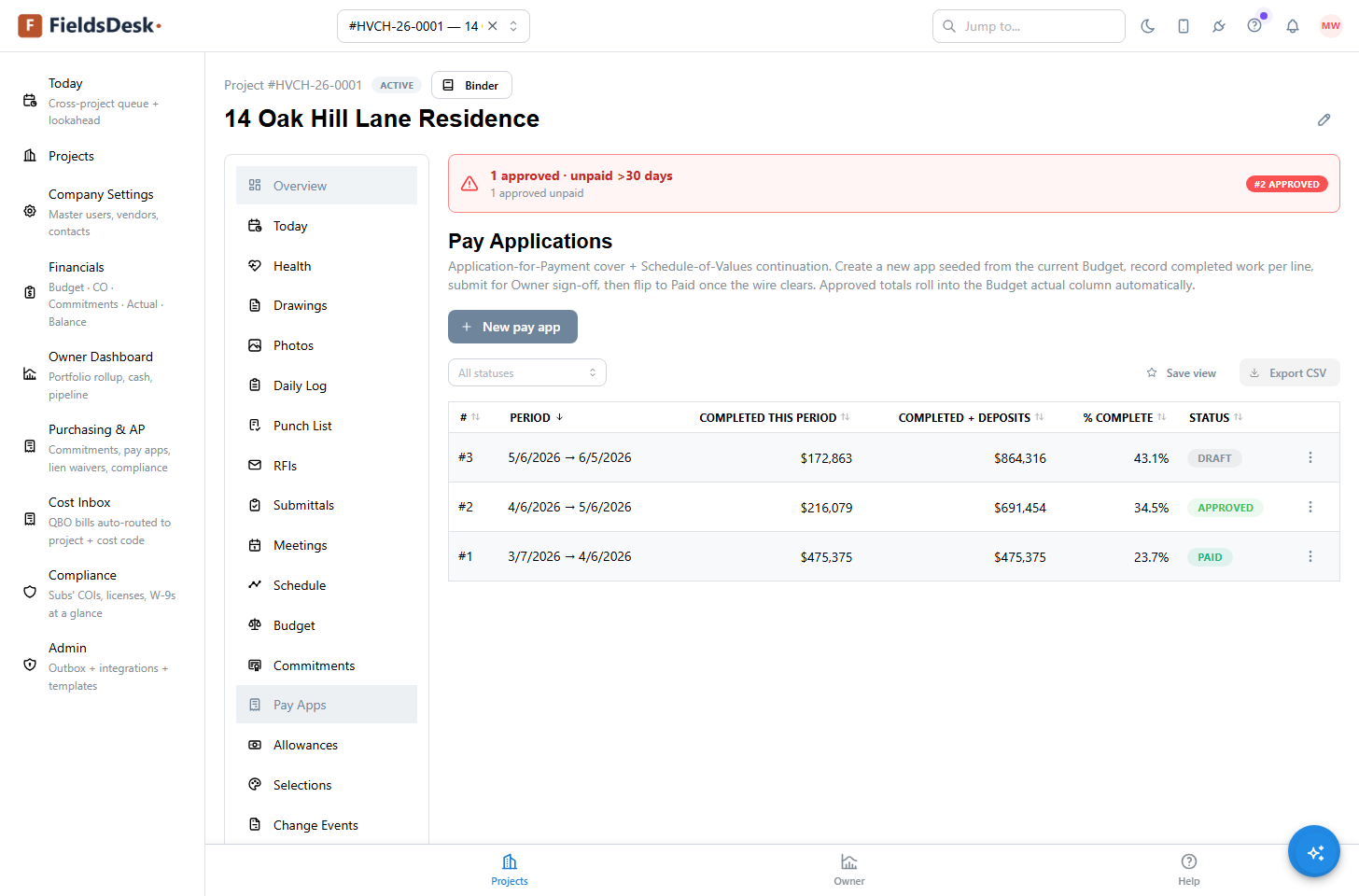
- Open Pay ApplicationsProject sidebar → Pay Applications. This is the prime billing module — your invoices to the owner — listing every app from draft through paid.
- Click New pay applicationPick the period. FieldsDesk pulls every approved change order and executed commitment line into the schedule of values automatically.
- Fill the schedule of valuesEnter work completed this period and materials stored per line. Retainage and previously certified amounts come from prior pay apps — no double-entry.
- Generate the applicationThe cover and continuation sheets render together with the current contract sum (including approved COs), retainage, total earned, less previous certificates, and current payment due.
- Submit to the architectMark Submitted and the architect gets the package with a one-click certify link. Mark Paid when funds land, and the cash trail updates on the Owner Dashboard.
Tip
Pay-application forms are merged from your company’s template too, so they match the format your owners and architects already expect.